Short‑form video is now the default growth channel, but building a consistent posting machine usually means stitching together editors, schedulers, and social dashboards. By combining n8n with Google Veo3 Fast, Google Sheets, and Upload‑Post, you can replace all of that with a single automated system that generates, stores, and publishes AI videos for you. This article breaks down the workflow step by step so you can deploy your own AI‑powered content engine.
Why this workflow matters
Short‑form video is the default language of the internet, but producing a steady stream of clips is expensive and time‑consuming. This workflow turns a simple Google Sheet into a fully automated pipeline that:
- Generates AI videos with Google Veo3 Fast via fal.ai.
- Stores them safely in Google Drive.
- Writes YouTube‑optimized titles using GPT‑4o.
- Publishes directly to YouTube and TikTok/Instagram through Upload‑Post.
Once configured, you can move from “idea” to “published video” without ever opening a video editor or upload UI.
Architecture at a glance
At a high level, the system looks like this:
- Input layer: A Google Sheet where each row is a video idea (prompt + duration).
- Orchestration: n8n coordinates calls to fal.ai, OpenAI, Google APIs, and Upload‑Post.
- Generation: Veo3 Fast turns text prompts into short, cost‑effective AI videos.
- Storage & metadata: Google Drive stores the MP4; YouTube URL and raw video link are written back to the sheet.
- Distribution: Upload‑Post handles YouTube and TikTok/Instagram uploads from a single HTTP endpoint.
This architecture is API‑first and scalable: simply add more rows to the sheet to queue more content.
Step 1: Configure the control panel in Google Sheets
Start by creating a dedicated Google Sheet that will serve as your “content queue”.
- Add these columns:PROMPT – a natural‑language description of the video you want (scene, style, subject).DURATION – desired clip length (e.g., “8 seconds”).VIDEO – left blank; will later store the Veo3 video URL.YOUTUBE_URL – left blank; will later store the final YouTube link.
- PROMPT – a natural‑language description of the video you want (scene, style, subject).
- DURATION – desired clip length (e.g., “8 seconds”).
- VIDEO – left blank; will later store the Veo3 video URL.
- YOUTUBE_URL – left blank; will later store the final YouTube link.
The n8n template is designed to read prompts and durations from this sheet, then write the generated video and YouTube URL back into the same row using a hidden row_number field for matching.
Step 2: Connect all services securely in n8n
Import the provided workflow JSON into n8n and then bind your own credentials. The template references credential records but does not embed any secrets.
Fal.ai – Veo3 Fast video generation
Veo3 Fast offers a faster and more affordable variant of Veo3 for short video generation.
- In your fal.ai account, create an API key.
- In n8n → Credentials, create an HTTP Header credential:Header: AuthorizationValue: Key YOUR_FAL_KEY
- Header: Authorization
- Value: Key YOUR_FAL_KEY
- Attach this credential to the HTTP Request nodes that:Submit a job to https://queue.fal.run/fal-ai/veo3/fast.Poll job status via the Queue API.
The workflow uses the queue pattern recommended by fal.ai: send a prompt, receive a request_id, then poll until the status is COMPLETED.
Google Sheets & Google Drive
Google Sheets acts as the data source, and Drive is the long‑term storage for generated videos.
- In n8n, add Google Sheets OAuth2 credentials and link them to:Get new video – reads new rows to process.Update result – writes back the Veo3 video URL.Update Youtube URL – writes back the final YouTube URL.
- Get new video – reads new rows to process.
- Update result – writes back the Veo3 video URL.
- Update Youtube URL – writes back the final YouTube URL.
- Add Google Drive OAuth2 credentials and connect:Upload Video – uploads the binary video into a dedicated folder (e.g., Fal.run).
Using Drive ensures you keep ownership and an archival copy of each generated clip.
OpenAI – GPT‑4o title generation
To make the videos perform on YouTube, the workflow uses GPT‑4o‑mini as a lightweight title generator.
- Create an OpenAI (or compatible) API credential in n8n.
- Point it to the Generate title node, which:Uses a system prompt to enforce:Max 60 characters.SEO‑friendly but not clickbait.Same language as the input description.Returns only the final title string, ready to be passed to Upload‑Post.
This keeps your titles consistent and optimized without manual editing.
Upload‑Post – Multi‑platform publishing
Upload‑Post abstracts the complexity of native social APIs and exposes a single /api/upload endpoint that n8n can call.
- In Upload‑Post:Create an account and generate an API key.Define one or more “profiles” (user identifiers) tied to your social accounts (e.g., personal1 for your main YouTube channel).
- In n8n:Create an HTTP Header credential:Authorization: Apikey YOUR_UPLOAD_POST_API_KEY.Attach it to:HTTP Request node for YouTube.Upload on TikTok node for TikTok/Instagram.
Upload‑Post’s n8n integration docs provide the exact node configuration the template follows: method POST, URL https://api.upload-post.com/api/upload, multipart/form-data body, and fields for title, user, platform(s), and video.
Step 3: Automate Veo3 Fast generation and storage
With credentials in place, the workflow can now orchestrate Veo3 Fast end‑to‑end.
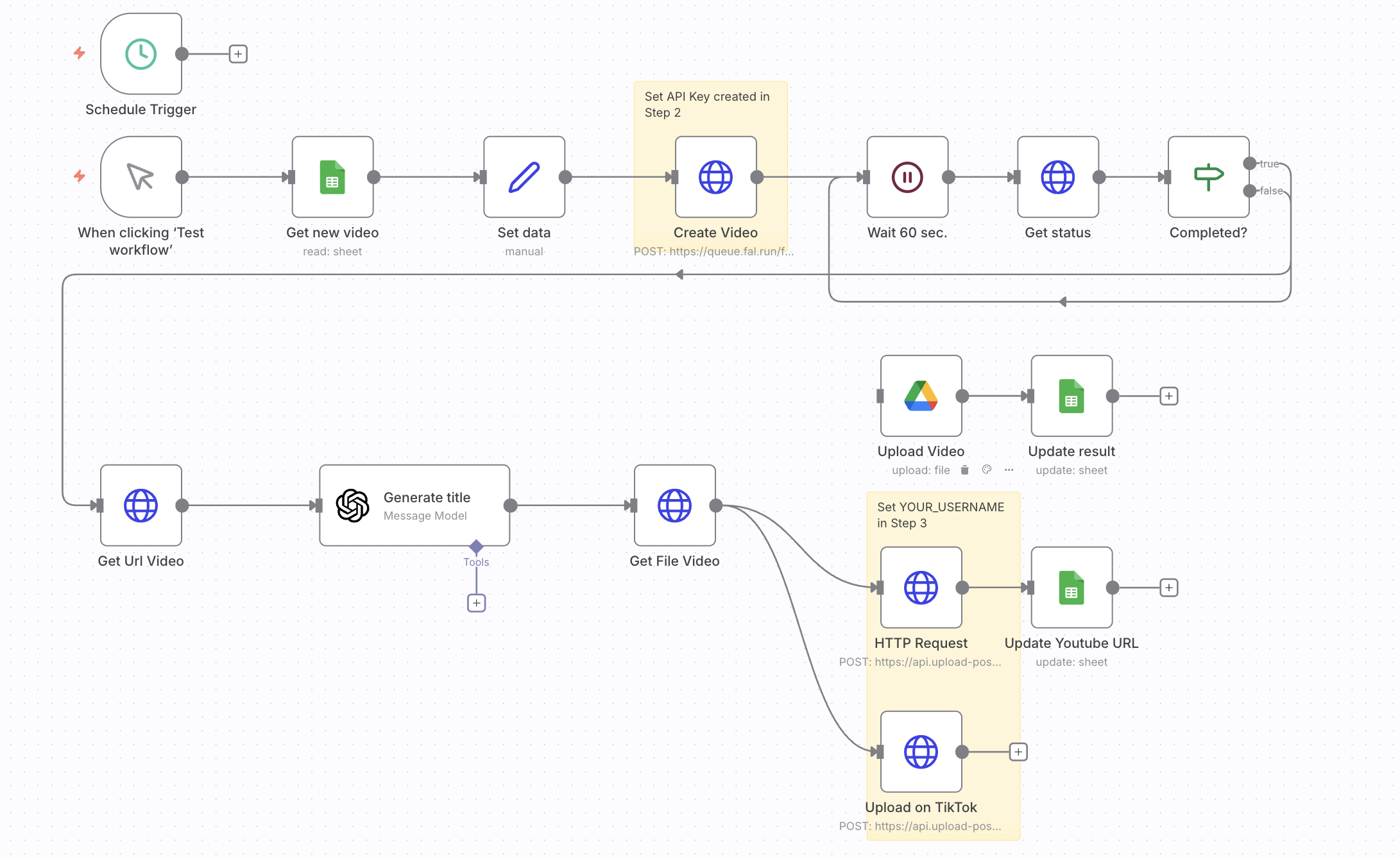
- Fetch the next job from SheetsGet new video reads one row with PROMPT, DURATION, and row_number.
- Build a model‑friendly promptSet data concatenates the text prompt and duration into a single prompt field, optionally appending style instructions (e.g., “Dancing on a viral music and dance move”).
- Submit a Veo3 Fast jobCreate Video calls POST https://queue.fal.run/fal-ai/veo3/fast with JSON body containing prompt and includes the Authorization: Key YOUR_FAL_KEY header.The response returns a request_id used for status polling.
- Poll status via Queue APIWait 60 sec. delays the workflow to give Veo3 time to render.Get status calls .../requests/{request_id}/status and reads the status field.Completed? checks whether the job is COMPLETED; if not, it loops back through the wait + status cycle.
- Retrieve the final video URLOnce completed:Get Url Video calls .../requests/{request_id} and extracts video.url and video.file_name.Get File Video downloads the binary file from video.url.
- Persist to Google Drive and SheetUpload Video stores the MP4 in your Drive folder with a timestamped filename, creating a durable archive.Update result writes the VIDEO URL back into the corresponding row using row_number as the identifier.
At this stage, a single Google Sheet row has turned into a generated AI video with a stable link and cloud backup.
Step 4: Enrich, publish, and track your videos
The final part of the workflow adds SEO metadata and publishes to your distribution channels.
Generate an SEO‑aware YouTube title
The Generate title node is configured as a chat completion call that:
- Uses the original PROMPT as input content.
- Applies rules to keep titles under 60 characters, keyword‑rich, and platform‑appropriate.
- Ensures the output remains in the same language as the prompt, which is important for non‑English channels.
The result is a clean, ready‑to‑use title string.
Upload to YouTube via Upload‑Post
The HTTP Request node prepares a multipart/form-data body matching Upload‑Post’s API spec.
Key fields:
- title – GPT‑generated title.
- user – your Upload‑Post profile (e.g., personal1).
- platform[] – youtube.
- video – the binary data from Get File Video.
The response contains a video_id for YouTube; Update Youtube URL constructs a shareable https://youtu.be/{video_id} and writes it into the YOUTUBE_URL column of your sheet, closing the loop.
Cross‑posting to TikTok and Instagram
The Upload on TikTok node is a near‑identical HTTP Request configured for an additional platform, using:
- A separate user profile (e.g., profile2).
- platform[] set to instagram or tiktok, depending on your Upload‑Post plan.
Upload‑Post supports both binary uploads and direct URLs for media, giving you flexibility if you later want to skip downloading the file in n8n.
Step 5: Turn it into a hands‑free content engine
To make this system run continuously:
- Connect the Schedule Trigger node in n8n and set it to your desired frequency (for example, every 5–15 minutes).
- Each run:Reads new rows from the Google Sheet.Generates videos via Veo3 Fast.Uploads to Drive.Generates titles and publishes to YouTube and TikTok/Instagram.Updates the sheet with VIDEO and YOUTUBE_URL, so you always have a live log of what went out.
Because everything is API‑based, you can scale by adding more prompts to the sheet or by sharding content across multiple profiles and channels as your catalog grows
After you have the basic loop running—Sheet prompt in, AI video out, published to YouTube and TikTok—the real leverage comes from optimization. Monitor which prompts and durations perform best, feed that data back into your sheet, and iterate on the GPT‑4o title prompt to steadily increase click‑through and watch time. Over time, the same workflow can power multiple vertical channels with only minor variations in prompts and profiles.


