Krea AI is one of the fastest-growing AI design tools in 2026, with search interest surging this month and a fresh $47 million Series B funding round. Unlike traditional AI image generators that make you wait 30–60 seconds per image, Krea's Real-Time Generation updates your output instantly as you draw, type, or adjust your canvas. This tutorial walks you through creating a polished product mockup from scratch — no design experience required.
What We're Building
By the end of this tutorial, you'll have a professional-looking product social media graphic — a stylized coffee brand hero image — created entirely with Krea AI's real-time canvas, then upscaled to high resolution. You can adapt this workflow for any visual: logos, social posts, blog headers, product shots, or concept art.
What You Need
- A Krea AI account — Sign up free at krea.ai. The free tier gives you limited daily generations; the Pro plan ($24/month) unlocks unlimited real-time use and faster models.
- A modern web browser — Chrome, Edge, or Firefox (2024+). No software to install.
- A rough idea of what you want — Even a few words or a quick sketch is enough. We'll use a coffee brand example below.
Step-by-Step Build
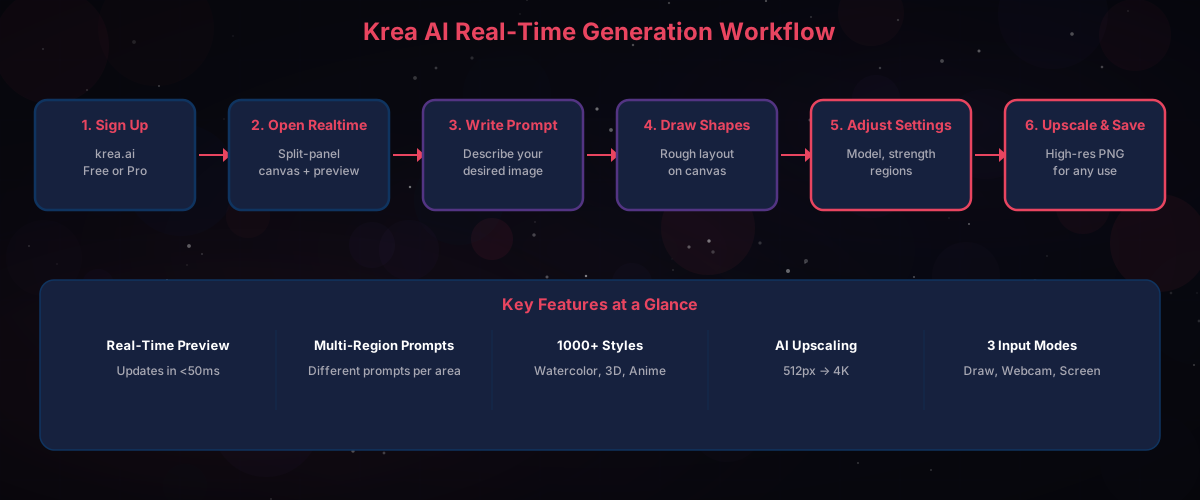
Step 1: Open the Real-Time Canvas
- Log in at krea.ai and click "Realtime" from the left sidebar (or top navigation bar).
- You'll see a split-panel interface: your drawing canvas on the left and the live AI output on the right.
- At the top, you'll find the prompt box. Below the canvas are brush tools, color pickers, and shape tools.
What you should see: A blank white canvas on the left and a blank or default preview on the right.
Step 2: Write Your Prompt
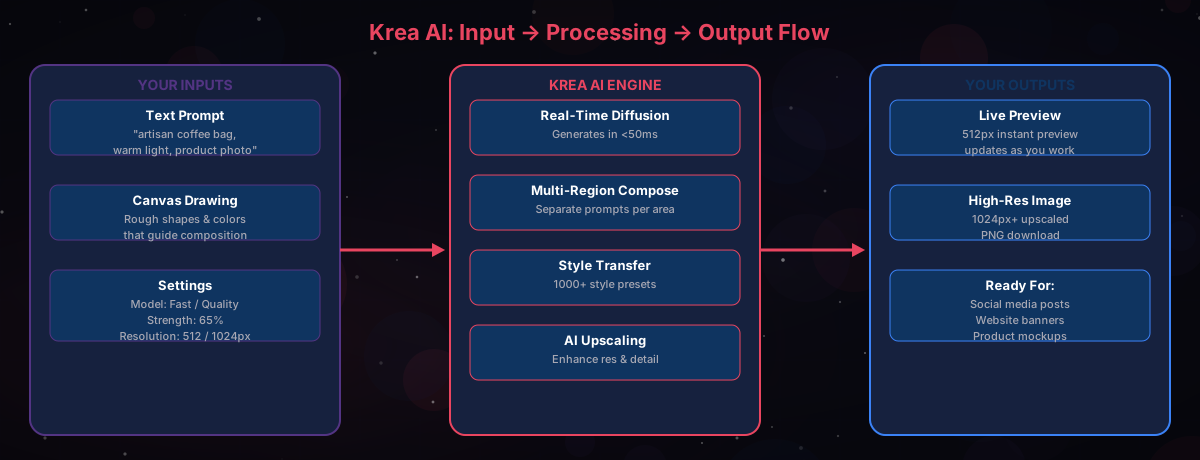
Type this sample prompt into the prompt box at the top:
A premium artisan coffee bag on a rustic wooden table, warm morning light,
steam rising from a cup nearby, photorealistic, product photography,
soft bokeh background
As soon as you type, the right panel starts generating a preview — even before you draw anything. The AI interprets your text and produces an initial image.
What you should see: A rough but recognizable coffee-themed image appearing on the right in under one second.
Step 3: Choose Your Model and Resolution
- Look for the model selector (usually a dropdown near the top or in a settings panel).
- For quick exploration, pick a Fast model at 512px — this gives you the tightest feedback loop.
- Once you're happy with the direction, switch to a Quality model at 1024px for sharper detail.
Tip: Fast mode is your sketchpad. Quality mode is your final render. Start fast, finish high-quality.
Step 4: Guide the AI with Simple Shapes
This is where Krea AI stands apart. You don't need drawing skills — rough shapes are enough.
- Select the brush tool from the toolbar below the canvas.
- Pick a brown color and draw a rough rectangle in the center of the canvas — this tells the AI where you want the coffee bag.
- Add a small circle to the right in a darker brown — this guides placement of the coffee cup.
- Use a light yellow and paint broad horizontal strokes across the upper portion — this suggests warm lighting.
Watch the right panel update in real time as you draw. Each stroke refines the AI's interpretation.
What you should see: The AI output now clearly positions a coffee bag in the center and a cup to the side, matching your rough layout.
Step 5: Adjust AI Strength
- Find the AI Strength slider (sometimes labeled "Creativity" or "Influence") — it's typically below the canvas or in a side panel.
- High strength (70–100%): The AI takes more creative liberty. Good for artistic, stylized results.
- Low strength (20–50%): The output stays closer to your exact drawing. Good for precise layouts.
For our coffee mockup, set it around 65% — enough for the AI to add photorealistic detail while respecting your composition.
Step 6: Refine with Multiple Regions (2026 Feature)
Krea's newest feature (launched April 2, 2026) lets you prompt different regions separately:
- Use the region selection tool (marquee or lasso) to select just the coffee bag area.
- Type a region-specific prompt: luxury matte black coffee bag with gold foil logo, "DAWN ROAST" text
- Select the background area and prompt: cozy kitchen counter, morning sunlight through window, shallow depth of field
- Click Generate (or let real-time mode apply changes automatically).
What you should see: The coffee bag now has distinct branding details, while the background has a warm kitchen feel — all coherent in one image.
Step 7: Upscale to High Resolution
- When you're satisfied with the preview, click the "Upscale" button at the bottom of the output panel.
- Krea's upscaling pipeline increases resolution and adds fine detail (textures on the bag, grain in the wood, specular highlights on the cup).
- Wait 5–15 seconds for the upscale to complete.
What you should see: A crisp, high-resolution image suitable for social media, a website banner, or even print.
Step 8: Download Your Final Image
Click the "Download" button next to the Upscale button. The image saves directly to your device as a PNG file.
Test It / Run It
Open your downloaded image and verify:
- Composition matches your layout (coffee bag center, cup to the side).
- Text or branding (if you used the region prompt) appears legible.
- Resolution is sharp enough for your intended use (social media needs at least 1080px wide).
Troubleshooting tips:
- Image looks blurry? Make sure you clicked Upscale before downloading. The real-time preview is only 512px.
- AI ignoring your drawing? Increase the AI Strength slider — at very low values, the AI may not interpret rough shapes well.
- Text on the product looks garbled? AI-generated text is still imperfect. For clean text, export the image and add text in Canva or Figma instead.
Next Steps
- Try Webcam Mode: Click the Webcam input option to use your camera as the canvas — pose with a product and let Krea restyle the scene in real time.
- Explore 1000+ Styles: Krea now offers over 1,000 built-in style presets. Try applying "Watercolor," "3D Render," or "Anime" styles to the same composition for completely different results.
- Batch for Social Media: Create variations of your hero image by tweaking the prompt slightly for Instagram (square), Twitter/X (landscape), and Pinterest (portrait) aspect ratios.